What Smart Device Compatibility Means Before You Buy
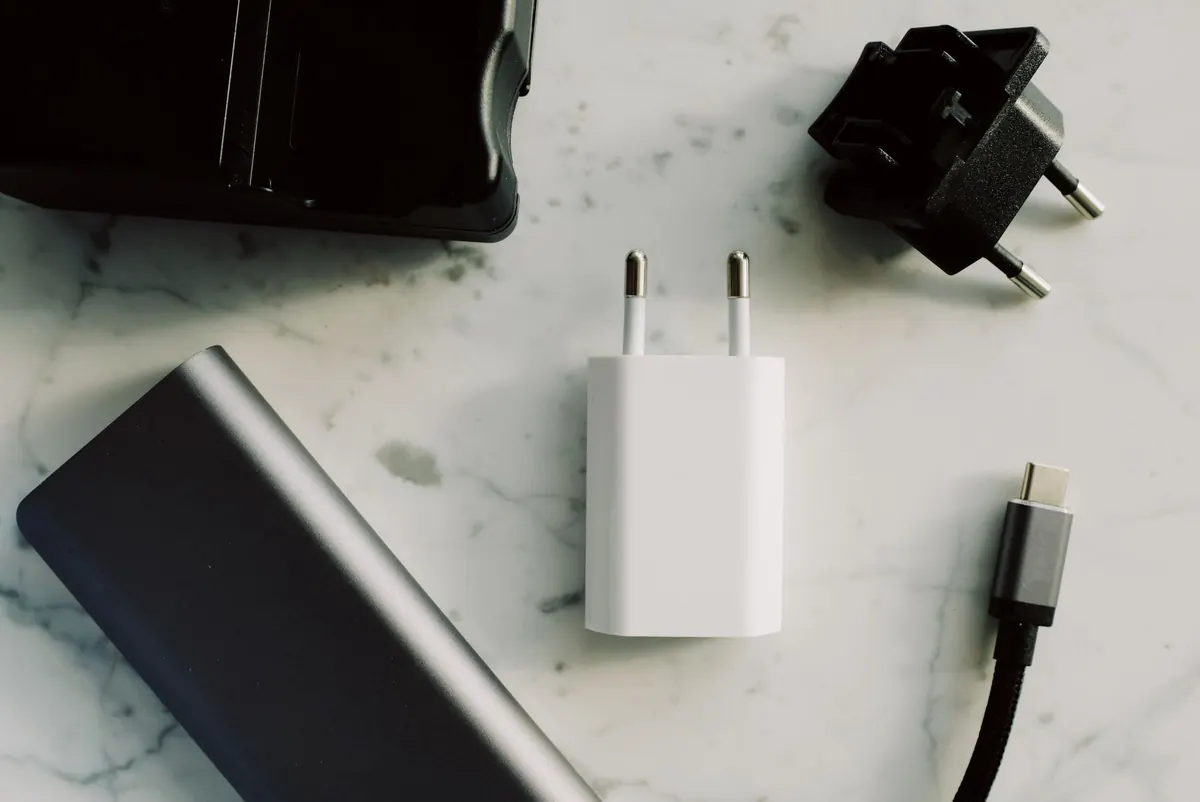
A smart plug looks simple until it refuses to join your Wi-Fi. A camera seems perfect until you realize the app wants a subscription for the feature you bought it for. Most compatibility problems show up after you have opened the box, paired the device, and moved it to the room where it belongs. A little checking before checkout saves that afternoon.
Compatibility is not one checkbox. It is a chain: your phone, your Wi-Fi, your smart home app, your voice assistant, and the device itself all need to agree. Here is how to read the fine print without turning it into a research project.
The app is the real product. You will use it for setup, updates, schedules, and most troubleshooting, so it deserves more attention than the photo on the packaging. Find the exact app name before you buy. Check that it is available in your region and runs on your phone’s current operating system.
Look at the last update date and skim recent reviews for repeated complaints about setup, login, or devices going offline. One angry review is noise; the same problem appearing again and again is a warning. Also check what the app expects. Does it need an account? Can two people in the house use it? Are the features you care about—schedules, alerts, sharing, history—available without a subscription? A device that only works well for one user can be awkward in a family home.
“Wireless” is not a single thing. A device may use Wi-Fi, Bluetooth, Zigbee, Z-Wave, Thread, or a combination. Each has different requirements, and those requirements decide whether the device works across the house or only within one room.
Many smart plugs, bulbs, and cameras connect only to 2.4 GHz Wi-Fi. That band travels farther and passes through walls better than 5 GHz, but it is slower. If your router uses one combined network name for both bands, setup can fail. Know how to temporarily split the bands or use a 2.4 GHz guest network if your router supports it. Also confirm that the device will be within reliable Wi-Fi range, not just near the router during setup.
Bluetooth is fine for setup or nearby control, but it usually does not give you remote access unless a bridge adds internet connectivity. Zigbee and Z-Wave devices need a compatible hub. Thread devices need a border router, often a smart speaker or hub. Matter can run over Wi-Fi or Thread, but a Matter logo does not mean the device includes a Thread border router. Check whether the hub or bridge is included, already in your home, and compatible with the exact model you are buying.
Apple Home, Google Home, Amazon Alexa, and SmartThings each handle devices differently. A device may appear in all four, but only basic functions may work. A light might turn on and off from a voice assistant while color scenes, energy history, or firmware updates remain in the maker’s app. A lock might show status but not allow unlocking by voice. Read the compatibility details for the features you plan to use, not just the logo on the box.
Check routines and scenes before you commit. If your morning routine depends on a motion sensor triggering a light, make sure the sensor and the light can talk to the same system in the way you expect. Some devices expose their sensors to other apps; others keep that data private. If you use Apple Home, confirm HomeKit or Matter support. For Google, check Google Home. If you rely on Alexa routines, verify that the device can be used as a trigger or a target.
Hubs and bridges are where compatibility gets sneaky. A Zigbee bulb may need a Zigbee hub. A smart lock may work by Bluetooth at the door but need a separate bridge for remote access. A camera may record locally but require a subscription for cloud clips. A bridge may support only a limited number of devices or only the manufacturer’s own products.
Make a simple map before you buy:
If the answer includes “I think my speaker is a hub,” stop and verify. Not every smart speaker supports every radio, and not every hub supports every brand. A quick check of the official setup guide is more reliable than a product page badge.
A smart device is a small piece of software with a plug or a battery attached. That means updates matter. A maker that updates its app and firmware regularly is easier to trust than one that has not touched either in years. Check whether the device can work locally, or at least what still works when the internet is down. Read how the app handles data sharing and whether you can delete history or limit permissions.
No gadget is supported forever, but you can avoid obvious dead ends. Prefer products with clear setup instructions, a visible support page, and a return policy you understand. If the listing is vague about which app you need or which hub is required, treat that as a compatibility warning, not a minor omission.
Before you pay, run through these questions:
That last point matters. Keep the box and receipt until the device has survived a week in normal use. Test the routine, the voice command, and the remote access you bought it for while the return window is still open.
The best smart device is not the one with the longest feature list. It is the one that fits the phone in your pocket, the router in your hallway, and the app you already open every day. Start with the app, confirm the radio, count the hubs, and check the features behind the logo. If a product page cannot answer those questions clearly, that is useful information too.
Then set it up early, test it with the people and routines it is meant to serve, and keep the packaging until you are sure. A few minutes of checking before checkout is easier than a drawer full of almost-compatible gadgets.
Photo: ready made / Pexels