10-Point Digital Declutter Checklist for a Faster Phone
A slow phone is rarely broken. More often it is full: full of photos you meant to sort, apps you opened twice in 2022, and notifications from services you barely remember signing up for. Most of that weight can be lifted in one sitting. Set aside an hour, work through the ten steps below in order, and you will finish with more free space, fewer interruptions, and a device that responds the way you expect it to.
Sixty minutes, phone plugged in, one pot of coffee. That is the whole setup.
The temptation is to turn this into a project: renaming albums, building a clever folder system, carefully ranking every app on a spreadsheet. Don't. You are doing a clear-out, not a renovation. Work in quick passes and accept that "good enough" beats "thorough" when the goal is a phone that feels fast again.
Two rules carry most of the weight here. The first is the backup test: if a photo or file already exists somewhere else — cloud, laptop, external drive — the copy on your phone is a convenience, not an archive. Treat it as disposable. The second is the three-second rule: if you hesitate over an item, it goes into a "decide later" album rather than back into the general pile. You can revisit a maybe. You cannot revisit a maybe you already deleted.
Delete in one pass, sort in another. Mixing the two is how an hour becomes a weekend.
1. Read the storage report before you delete anything. On iPhone, open Settings, then General, then iPhone Storage. On most Android phones it is Settings, then Storage (the exact wording shifts between manufacturers). Either way you get a ranked list of what is actually eating space. Look at the top two or three entries and ignore the rest. Clearing a 40 MB app while your photo library sits at 30 GB is the digital equivalent of tidying a drawer while the roof leaks.
2. Attack photos and videos. This is usually the largest category by a wide margin, and it is where an hour pays off fastest. Start with the easy kills: screenshots, screen recordings, accidental shots of your thumb, and duplicates. Both iOS and Android now surface duplicates and blurry shots automatically in the Photos app, so let the software do the first sweep. Then sort by size to find the heavy hitters — a few long videos are often worth more space than a thousand images. If you are not ready to delete a video outright, trim the dead air at the start and end.
3. Empty the trash. Deleted photos do not vanish immediately. On iPhone, they sit in the Recently Deleted album for around 30 days; Android gallery apps behave similarly. If you have just cleared a few gigabytes, that space is still occupied until you go into that folder and confirm the deletion. It takes ten seconds and is the single most common reason people finish a cleanup with no extra storage to show for it.
4. Remove apps you have not opened in months — and offload the maybes. Scroll your app library and be honest. That language app you used for nine days, the scanner you downloaded for one form, the two fitness apps that disagree with each other: gone. For anything you might genuinely need again, use your phone's offload option. iPhone has "Offload Unused App" in the storage settings, which removes the app but keeps your data, so reinstalling restores everything. Android offers similar archiving on newer versions. You get the space without the anxiety.
5. Clear caches inside the apps that stay. Messaging and social apps quietly hoard images, voice notes and previews. WhatsApp has a storage manager under Storage and Data where you can sort chats by size and clear media in bulk. Your browser holds months of cached pages; most let you clear cache without touching passwords or bookmarks. Do this for the three heaviest apps and you will often reclaim more than a full app deletion would give you.
6. Turn off background refresh for apps that do not need it. On iPhone this lives in Settings, then General, then Background App Refresh; Android exposes something similar in the battery or app settings. Shopping, airline, and utility apps have no business refreshing in the background all day. Keep it on for messaging, maps, and anything with live updates. This is a battery and responsiveness fix more than a storage one, but it is the step people notice most in daily use.
7. Set messages to expire. On iPhone, Settings, then Messages, then Keep Messages lets you choose 30 days or a year instead of Forever. The conversations stay; the old attachments stop accumulating. If you are not ready for that, at least scroll to your biggest group chats and photo-heavy threads and clear attachments manually. Nobody needs four years of blurry dinner photos in a group chat that has not been active since 2023.
8. Empty the downloads folder. This is the forgotten corner of every phone. PDFs of tickets, expired boarding passes, screenshots saved "for later," installers, forms you signed eighteen months ago. Open your Files app or downloads folder, sort by date, and delete everything older than a few months that you have not opened. Then check your cloud drive's offline downloads — those cached files count against your phone's storage too.
9. Audit notifications properly, not casually. Go into notification settings and read the list app by app. For each one, ask whether you would accept a stranger tapping you on the shoulder to tell you that. News alerts, shopping promos, game reminders, "we miss you" emails-as-push: off. Keep calls, messages from real people, calendars, and ride or delivery updates. A phone that buzzes forty times a day feels slow even when it isn't, because you are constantly interrupting yourself to check.
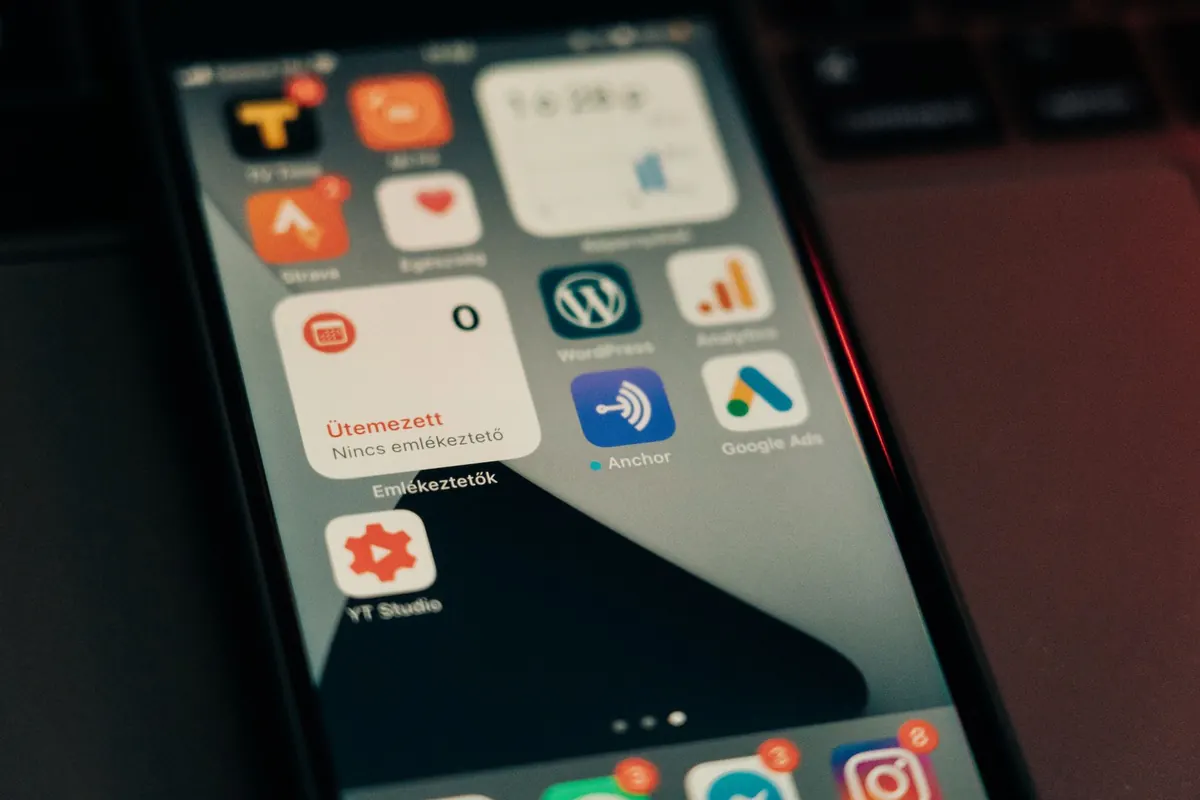
10. Rebuild the first screen. Move everything that is not essential off the home screen. Keep a dock of five or six genuinely daily tools — messages, camera, maps, notes, music — and put the rest in the app library or a single folder. Then cut widgets down to two or three that show real information, like today's calendar and the weather. Fewer animated widgets on the home screen means less work on every unlock.
An hour of work can undo itself in a month if nothing changes about how you use the phone. Two small habits prevent that.
First, set a monthly fifteen-minute slot — the first Sunday, a commute, whenever you will actually do it — and repeat only steps 1 to 4. That is enough to keep storage from creeping back up without turning cleanup into a chore. Second, slow the inflow. Turn off auto-download of media in messaging apps, stop saving screenshots to the camera roll by default, and before installing a new app, delete one you have stopped using. One in, one out works for closets and it works for phones.
None of this requires a new device or a paid subscription. It requires one focused hour and the willingness to let go of a few things you were keeping for no particular reason.
Photo: Szabó Viktor / Pexels
Previous Post
Smart Home Hubs Explained: Do You Need One or Just Your Phone?
Next Post
Smart Watch vs Fitness Tracker: Which Is Better for Everyday Wellness?